Showing posts with label Linksys Router. Show all posts

Apr 7, 2009

Router Setup For DSL Connection


How To Setup Router for DSL connection

Here are the simple steps you can follow to setup your router for DSL connection. Some of DSL providers :- Verizon, DSL extreme, Bell South, Earthlink, SBC Global......

So i guess you know how to open the setup page........ So i will explain now what are the different settings you need to do on setup page. But if you still don't know how to open the setup page then just go to weblink below & check out 

Below are the images step wise ..... a picture speaks more than thousand words right...

1). Setup page


2). goto status tab and checkout IP address....If IP address is 192.168.1.x (x could be anything from 1 to 254) then follow Step 3.1 ....... or if IP address is 0.0.0.0 then follow Step 3.2


3.1). IF IP: 192.168.1.x......Then just change the the ip address of your router from192.168.1.1 to something different like 192.168.5.1


3.2). IF IP: 0.0.0.0......Then just click on automatic configuration & change that to PPPoE. When you do that it will ak you for username & password there type in the username & password provided to you by your DSL internet provider.(username should be full like @verizon.net)


4). Status and checkout IP address : 64.155.246.47  or 192.168.1.1 .Now just try to go online. If you have any problem just do a powercycle & you will be online after that. That mean you are done just enjoy.


Note: After your are done with configuration its always better to Powercycle the system. You can always comment if you have any suggestion or problem.

Mar 22, 2009

How to setup Router for Cable connection


How To Setup Router for Cable connection

Here are the simple steps you can follow to setup your router for cable connection. Some of cable providers :- Comcast, Charter, Time Warner, Cox, Mediacom......

So i guess you know how to open the setup page........ So i will explain now what are the different settings you need to do on setup page. But if you still don't know how to open the setup page then just go to weblink below & check out 

Below are the images step wise ..... a picture speaks more than thousand words

1). Setup page


2). goto status tab and checkout IP address


3). Under setup 3rd sub tab ... Mac clone ----> enable -----> save settings


4). Status and checkout IP address : 64.155.246.47 .Now just try to go online you sholud be online now only job is to setup w/l network...


5). Setting up w/l network you will see this SSID name on your w/l computer


6). Securing your w/l network. That makes sure that nobody can hack into your system & your neighbours can't connect to your network

Note: After your are done with configuration its always better to Powercycle the system. You can always comment if you have any suggestion or problem.

What is NAT?

NAT-Network address Translation

Usually the reason why i am talking about NAT is that so many time when we connect Xbox-360, PS3 to router and try to connect to xbox live or ps network .

We get errors like your NAT settings are set to moderate change them to open and don't even have a clue wtf is NAT. And how to change that to open mode till that time you don't even know that NAT is there in your router. So first i will explain a bit about NAT. 

So your router uses NAT to convert the public IP address  into Private IP address. Public IP address is the ip we get from internet providers & Private IP address is the ip we use @ our home. Hence NAT converts them from public to private & vice versa. So that you can use your internet connection on all the computer & other devices like i-phones, wii, xbox, ps3.

As now you know a bit about NAT so now lets talk about how you can change that to open. To change NAT to open you just need to open some ports on your router usually for xbox just forward two ports --- 80,3074 .... & for PS3 tcp:80, 443, 5223 ...... udp:3478, 3479, 3658....
These are the port which you need to open on your router and one more thing i tested the port numbers my self they works so be sure that your Xbox as well as PS3 will work fine after you forward these ports.

 NOTE: on router there is always one option to open all the ports for one device. DMZ always best to avoid that because that creates a balck hole in your seurity. So always best to open ports or trigger them but donot go for DMZ until needed.

If you have any other question just leave a comment....

Mar 18, 2009

How to Reset the Router

Reset

To reset the router just follow these three steps & you are done :-


  1. So as per the figure above you will find a Red/Black button kinda small hole on the backside of the router. So Your job is to hold that for about 30-50 seconds but should not be more than 1 minute. While you are holding the reset button keep checking the power light it should blink that is the only sign that reset button is pressed properly. One last thing sometimes power light may not blink so be a bit gentle while pressing the button after all that's router man!!!
  2. After you are done with that just unplug the power cable from the router. Wait for 10 seconds now plug power cable back again.
  3. Now check the power light it should be steady. If power light is steady you are good to go.

That mean the reset was successful so just continue with whatever you were doning @ that time ;-)

Type of internet connections

ISP Types


Basically "ISP-Internet Service Provider" are of three types Cable, DSL, & Satellite. Now let me explain each one a bit OK. 

  • First lets start with cable connection that means usually you are getting Internet via a cable line. That might not be the case in all the time but most of the time you have a cable line so that derives the name cable ISP. Ex:- Comcast, Cox, Mediacom, Suddenlink......

  • Then we have DSL usually with this type of connection you have a phone line. Ex:- AT&T,   Verizon, Bell south.......

  • Last but not the least is satellite that means no cables from internet provider, you will be having a antena or dish to pick up the signal. Ex:-Skybeam
So now you now which connection type of internet connection do you have.......Right!!!

Mar 9, 2009

Port Numbers for Xbox, PS3 & Few Games


PS3

Play Station 3 (PS3):- If you have any problem connecting PS3 online or if you have more lag while playing online then try out these ports. You need to either forward them or trigger then via router....Port numbers are :- 

TCP   :- 80, 443, 5223    &

UDP :- 3478, 3479, 3658


XBoX-360

XboX-360 :-  If you have any problem connecting Xbox to Internet or if you have more lag(Ping) while playing online then try out these ports. You need to either forward them or trigger then via router....Port numbers are :-

TCP/UDP: 88, 3074 


Games Port numbers

Metal Gear Solid: Portable Ops

TCP - 10070-10080

UDP - 5730-5739

UDP - 10070


MLB Live

UDP - 6000-7000

UDP - 10069-10071

UDP - 56399-56401


NBA '06

TCP - 30100-30199

TCP - 13505

UDP - 3658

UDP - 6000

UDP - 9555


Ratchet an Clank

TCP - 10070-10080

UDP - 10070


Socom

TCP/UDP - 10070-10080

UDP - 6000-6999 

UDP - 50000-50001

Mar 5, 2009

How to Open the Setup page of the Router

Just follow the steps below and you will be on the setup page in minutes.......


Physical Connections

1). We need to do the physical connections properly...so do that please connect the devices as below modem(ethernet port)......with cable......Router(Internet port)........with cable......Computer(if desktop then back of the tower)(or if laptop then connect the cable to the laptop).

IP Address

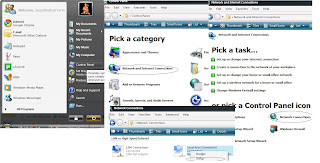
2).Now we need to check the IP_Address on the computer .>>>.. so to do that just click on Start ...>>>. then click on  Control Panel,,>>>,, then click on  Network Connections .... there you will find  Local area connection (two computer icon) .>>>... right click on Local area connection then click on status there at the top you have two tabs .>>>.. general and support .>>>...click on support ... there in the second line you will find ip address number like ip address:192.168.1.100..sub mask:255.255.255.0...default gateway:192.168.1.1

Open Setup Page 

3).Now just open the internet explorer and in the address bar just type the default gateway address in the address bar ....>>> and press enter you will get the username and password window>>> there leave the username blank and in the password typeadmin (this is default password) but if you have changed the router password then type that information in the password box.

Linksys Setup Page


4).Then you will be on the Linksys Setup Page and you can do the changes you want on the router. That's all. Now all we have to do is to just custumize setup as per our use.

Even after the steps if you are not ale to open the setup page just put a comment with error message like .. internet explorer can't display the website. Then i will reply to that with solution. 

Feb 26, 2009

How to Powercycle Router

Power-cycle

  •  First turn off all the computers or other devices which are connected to router like printer,   i-phone or any other (as they are the end elements or users of the system)
  •  Now turn off the router by unpluging the power cable from it. (This is intermediate element between modem and router)
  •  Finally turn off the modem might be a cable or dsl modem. If the modem have battery backup do take out the batteries. (This is the primary equipment)

Now just wait for 1 minute. Hold your breath because modem releases IP after 30 to 45 seconds........

  •  Now turn on modem first and wait till you have all lights lit on it... like on dsl modem...power,dsl,internet,ethernet  &  on cable modem .... power,internet,downstream,upstream,ethernet.
  •  Afterward turn on router & just wait till power light is steady.
  •  Finally turn on all the computers and other devices. And you are good to go....... 
Now at last few reasons why you need to power cycle your system:-
  1. You was online and somehow you lost the connection.
  2. Speed is slow you can try this a first step. Can you believe this that it might resolve the issue.
  3. After you are done setting up the router.


Feb 19, 2009

How to check IP Address

Check out IP Address
1). Using command prompt :-

Here i will explain with screenshot how to check ip with command prompt.
i)Start >>>> Run >>>> cmd (press OK)

Now we have command propt open, so just type following commands.
a). ipconfig/all - This command will give detail discription about all the network adapter like their physical address (Mac address), ip address, subnet mask, default gateway.


b). ipconfig/release - This command is used to return the ip address to DHCP - Server.  What that mean's is that your ip address after the command will be IP Address: 0.0.0.0


c). ipconfig/renew - This command is used to renew the ip address. Like after 2nd command we have ip:0.0.0.0 , so when we type this command it will ask DHCP - Server for address so now the ip address will be like IP Address : 192.168.1.100 (just for example)

2). Using Network Connections :-
Here is how to check ip without command prompt, as that appear a bit technical....
i) start >>>> Control Panel >>>> Network & Internet Connections >>>> Network Connections >>>> Local Area Connection or Wireless Network Connection >>>> Right Click >>>> Status >>>> Second Tab is Support you will find ip address there.

Now Just check out ip address : -